LEFTEROS / PERSONAL NOTES
CardDAV on iOS, Google/Gmail contacts without Exchange/ActiveSync
2 April 2013 / Lefteris Iliadis / SomniusX
Historical text from HellasProject (2009–2014). It is not current advice or a present-day service.
Localized article, source and photos from Redmond Pie.
Google no longer supports Exchange ActiveSync for syncing email, contacts, and calendars stored on a free Gmail / Google ID with third-party apps (meaning everything except Google). If you had set up Google Sync via Exchange on your iOS device before 30 January 2013, you will not notice a change unless you restore or change devices and try to set Exchange up again — then you get “Cannot get mail, the connection to the server failed”.
This has made life hard for a lot of people, especially iOS users. Luckily there are alternative ways to sync contacts and calendars on iOS.

Google now recommends CardDAV and CalDAV for contacts and calendars. If you are on iOS and a Gmail user looking for a future without Exchange/ActiveSync, here is a step-by-step guide to sync contacts with CardDAV.
Set up Gmail / Google contacts sync with CardDAV
Step 1: Go to Settings on your iPhone (the same steps apply on iPad and iPod touch) and choose Mail, Contacts, Calendars, right under iCloud.

source Redmond Pie
Step 2: On Add Account, choose Other.

source Redmond Pie
Step 3: Choose Add CardDAV from the Contacts options.
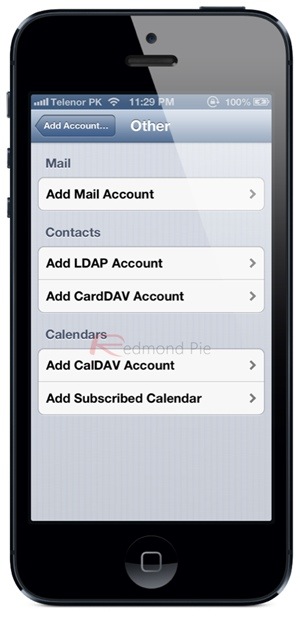
source Redmond Pie
Step 4: Fill in the account form as in the example, following:
- Server: google.com
- Username: your Google email (if you are not on Google Apps or similar, your Gmail)
- Password: the password for that email
- Description: informational. Enter a description so you know which account it is if you have several. In the example we use simply “CardDav”; you can write whatever describes this account.

source Redmond Pie
Step 5: Tap Next in the top right of the screen.
That is it, you are done. If you entered the details correctly, the account will authenticate and you will have immediate access to your synced contacts.
Note: with a large number of contacts and many photos, the process may take longer than expected, depending on whether you are on 4G/3G/Wi-Fi. Wi-Fi is recommended for a faster finish.
Localized article, source and photos from Redmond Pie.
