 lefteros
LEFTEROS / PERSONAL NOTES
What I Backup When Restoring My iPhone
26 July 2010 / Lefteris Iliadis / SomniusX
Historical text from HellasProject (2009–2014). It is not current advice or a present-day service.
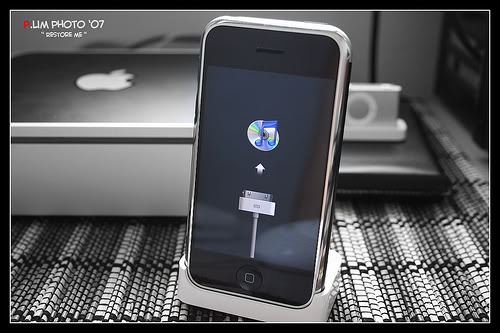
Many of us now have our iPhone jailbroken, especially if you come from the era of the 1st iPhone now called “2G”, which to work with Greek mobile networks had to be jailbroken so the unlock to the carrier would work. Aaaah, old good times; now everyone plays cool “I do not jailbreak because I like it clean”, but they want to, only they have been frightened by the many changes and programs (see threads on a known site that fill 50 pages with the same questions), and they simply do not take the step. I do not blame them; some take risks, some do not..
Now back to our topic..
Every large firmware change “mama” Apple makes often puts us in a very hard position. To give an example, the move from 3.x to 4.x of the new OS named “iOS” and not “iPhoneOS” because it also runs on other devices (see iPad, iPod Touch); that move can be painful. Everyone says it would be good after Restore to set it up as a new device etc. Most people, though, forget to Sync, not only backup but also Sync yes there are those too, so when they reach Restore they have not chosen to pull their contacts into some local program (see Address Book on Win/Mac) or their Calendar (see MS Outlook on Win or iCal on Mac). Now you will say those are OK, we save them. Fine, I will say “bravo” too.. The SMS? Other settings you have made on the device? Those, goodbye?
Here then come a few steps that need a little more knowledge of our favourite demanding device.. we absolutely want it jailbroken with Cydia installed (preferably not Rock) and the OpenSSH package installed and whatever it asks as dependencies. Here the affair needs a little hand, and when we say hand we mean shell commands in an SSH terminal environment. You can also copy partial, but specific, content from the iPhone, such as SMS, and put it on your freshly set-up firmware where it was before, changing only a few permissions. Let’s go into more detail so we have everything safe and sure on our new phone.
1. Sync with iTunes.
That way all programs/apps from the App Store and the stock ones will be saved at the level of their information, notes, game saves, logins etc. If, however, you are not going to come back from backup and you go for a freshly set-up iPhone, then you simply do not need to do this. Of course it is good to have such a backup aside and afterwards (only on Mac) with the program “iPhone Backup Extractor” extract some or all (with a little effort) of the information you need!.
2. Copy photos/video to your computer using a USB connection.
If something happens to you and you cannot access your photos from the iPhone, as has happened to many, even via USB, you can navigate to the folder /private/var/mobile/Media/DCIM/ and manually download them via SSH wirelessly. Careful, if you have very many photos and videos, wireless copy may take quite a while.
3. Keep a screenshot of every page of your SpringBoard.
Also keep a screenshot of WinterBoard settings and of Settings where the list of jailbroken add-ons is, so you know what you had put in (e.g. Activator settings etc.)
- Open Cydia and note or take again screenshots of whatever you find in the Manage > Packages menu, which is everything that went on the device after jailbreak.
Now you will not need to do the following if you have a synced backup, but here we talk about cases where e.g. the synced backup reports something wrong and you cannot use it, or if you have kept no backup at all. Let’s go further..
Backup Voice Memos: manually via SSH from /private/var/mobile/Media/Recordings; if you want to restore them to the new one, make sure you have also kept the Recordings.db file.
Backup of Contacts: manually via SSH from /private/var/mobile/Library/AddressBook/AddressBook.sqlitedb and the images/photos of your contacts in the same folder in the file: AddressBookImages.sqlitedb
Backup of Calendar: manually via SSH from /private/var/mobile/Library/Calendar/Calendar.sqlitedb
Backup of Call History: manually via SSH from /private/var/mobile/Library/CallHistory/call_history.db
Backup of Keyboard Auto-Corrections & vocabulary: manually via SSH from /private/var/mobile/Library/Keyboard/user_autocorrections.plist and user_dictionary.plist. You can also copy the file dynamic-text.dat. It seems to be used for word phrases you use when you type and the iPhone adapts them to you in trying to guess what you are going to write!
Backup of Maps, Favourites/Bookmarks, Directions and History: manually via SSH from /private/var/mobile/Library/Maps/Bookmarks.plist, Directions.plist & History.plist
Backup of Notes: manually via SSH from /private/var/mobile/Library/Notes/notes.db & notes.idx
Backup of Safari Bookmarks, History & Last State: manually via SSH from /private/var/mobile/Library/Safari/Bookmarks.plist, History.plist & SuspendState.plist
Backup of SMS (Text Messages): manually via SSH from /private/var/mobile/Library/SMS/sms.db
If we had Voicemail in Greece we would do the following..
Backup of Voicemail Messages: manually via SSH from /private/var/mobile/Library/Voicemail/voicemail.db and any other files ending in .amrBackup of WebClips (bookmarked pages you have added to your home screen): /private/var/mobile/Library/WebClips/(all folders ending in .webclip)
Backup of App Store information: some App Store apps store information you may need. For example, todo lists, twitter accounts, etc. You have to check each folder you find at /private/var/mobile/Applications. Sometimes it is also a matter of luck to hit the folder you are looking for because they are named with numbers and characters in random order. Anyway each app inside has a Documents folder; there are all the information you need to keep (this is called the app sandbox, let’s use a term too). There is a chance some apps do not have “Documents” inside them but something else. There it is your judgement to figure out which to keep!
When you have all this aside safe and you are ready, take the big step to Restore from iTunes, re-jailbreak the device again and throw it all back in place as you had it before. All Cydia programs unfortunately will have to be reinstalled (something my friend GeekSada has solved with the program “CydBR” for terminal from inside the iPhone, but more on that in another post). You will need via SBSettings and from its menu that repairs Permissions in the user folder to do it, while before you have made sure that what you put back on the device is chmod’ed recursively to 777, and if after all that you see e.g. an app such as SMS open and close it is certainly the permissions wrong and try again with chmod and finally SBSettings & Reboot and you will succeed. That in the literal sense is what iTunes does, but manually, without all the junk that may have gathered from the previous firmware you had inside.
If I have forgotten something or if you want to note something about the whole scene do not hesitate to comment below and I will see to an addition or correction! I would also like to know if you managed a successful restore of the data to your device!
Written by SomniusX – HellasProject.com
bibliography/partial source appleiphoneschool
2 comments on the original.