 lefteros
LEFTEROS / PERSONAL NOTES
VPN tutorial for Pandora
15 August 2010 / Lefteris Iliadis / SomniusX
Historical text from HellasProject (2009–2014). It is not current advice or a present-day service.

(I will quote the words of my good friend SingingCircuits as he wrote them on Macland.gr, adding my own illustrated guide!)
For a few days I wanted to use the popular music streaming service Pandora, which was accessible from Greece until 2006, when the service’s activities were limited to America because of copyright, which made the job a bit hard.
At first I thought of using the iPad app (which I downloaded via the US App Store) together with FakeLocation (available via Cydia). Unfortunately that tactic did not work.
Enter VPN! I remembered that on a site I had read a guide for how a non-US resident could watch content from websites such as ABC, NBC, Fox etc., which do not allow streaming to non-US residents. The guide recommended using VPN and not proxies, mainly because of their simplicity and the bandwidth they provided. I said I would try whether the trick also worked with Pandora.
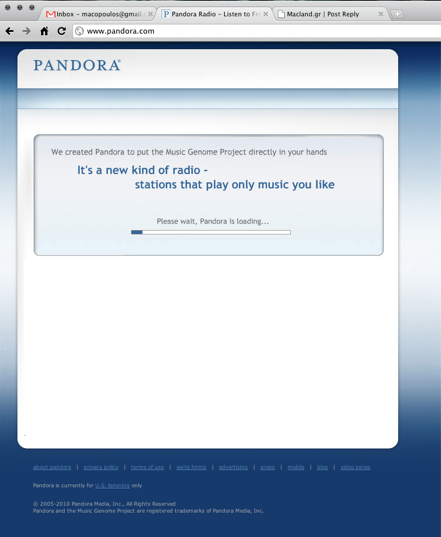
5 minutes later I had downloaded AnchorFree’s free VPN, Hotspot Shield (link at the end of the post), entered Pandora, and was streaming from my personalised station with excellent sound quality and no stuttering.
I also tried the VPN’s capabilities on streaming video. From ABC and Fox, the video buffered very fast and streaming was trouble-free. (I tried to watch video from hulu.com as well, but they detected VPN use and demanded it be disabled for video playback.)
Setting up the VPN is very fast and easy. The steps are as follows:
Go to the page where you can download Hotspot Shield (link here).
Press download (depending on your software, the matching file will download. No input is needed from you. Everything happens automatically! I tried it on Windows and on Mac OS 10.6.4; on Windows I automatically got a downloader for the actual app, on Mac a DMG with a package for installation.)
Install the app (on Windows, make sure you do not install the toolbar.)
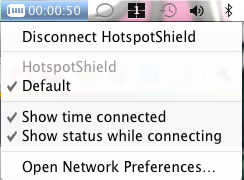
You are done! The first time the VPN will auto-connect. For future use, go to the menu bar (Mac) or the system tray (Windows), find the Hotspot Shield icon, right-click and then connect (on Mac a simple click on the menu bar item).
Demo of using the VPN on my own machine, in the video here
Twitter: http://twitter.com/singingcircuits
Youtube: http://youtube.com/achilforceIf on your computer the program does not connect to the VPN, follow the guide SomniusX posts below! :-)
And now my own guide!!! 
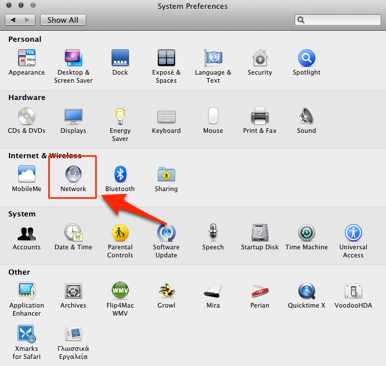
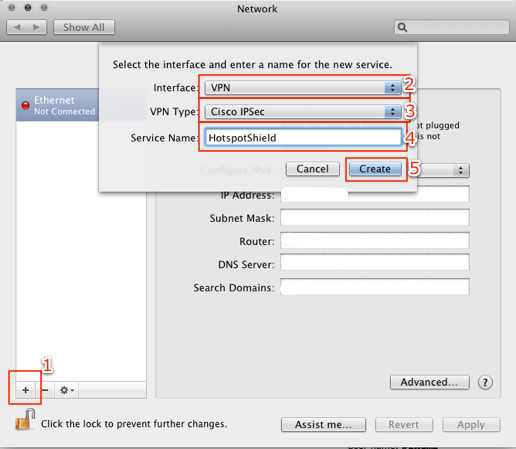
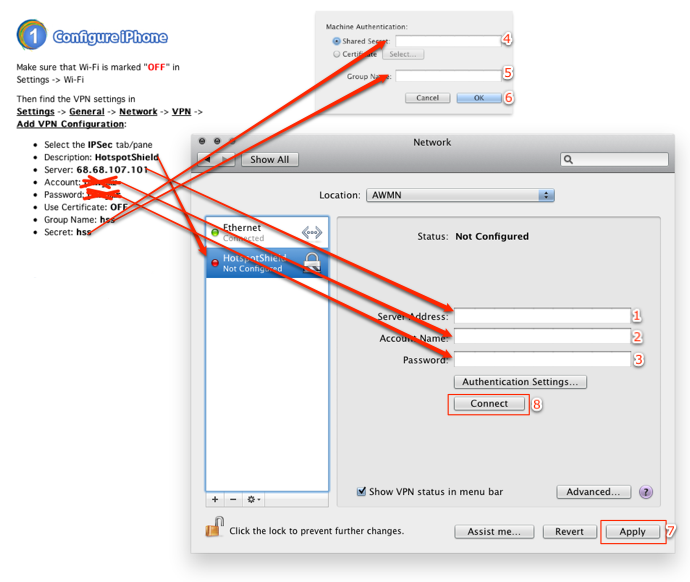
So the steps for a raw VPN on Mac are below with images!!
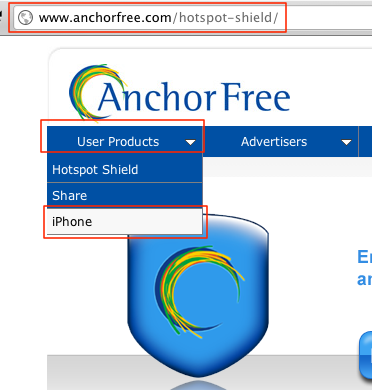
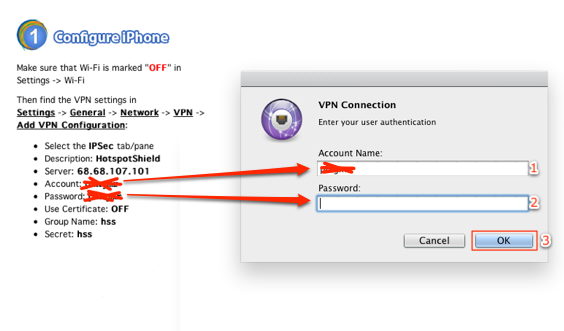
Note, we follow the iPhone steps because they give us details we need; it does not care where we put them!
Step 1
**
**
Step 2
**
**
Step 3
**
**
Step 4
**
**
Step 5
**
**
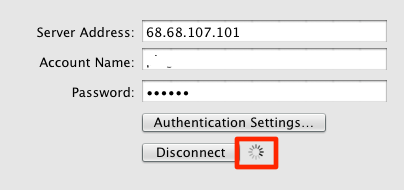
Step 6
**
**
Step 7
**
**
Step 8
**
**
Step 9
**
**
Step 10
**
**
The only problem, if God makes it a problem, is that every time you Connect from the menu bar or from System Preferences you will have to enter the password, which is the same as the username exactly as in Step 7
Also.. See 7 ways to listen without a web browser here..
Happy listening ladies and gentlemen!
_Source
_[
Macland.gr
6 comments on the original.