 lefteros
LEFTEROS / PERSONAL NOTES
GeekTool guide and Geeklets
7 March 2010 / Lefteris Iliadis / SomniusX
Historical text from HellasProject (2009–2014). It is not current advice or a present-day service.
The following article is a republication of the related post on Macedonas.gr with permission of the author and publisher.
Written by Evripidis..

As I wrote earlier, GeekTool is a PrefPane (free, of course) that helps us show on the desktop information from system log files, results of unix commands, even images. That may look incomprehensible or mountainous and scary because of the name, but with a few lines of code everything is easy. And when each person’s graphics, look, and taste are added, the desktop result can be more than impressive.
After questions on a post (written for another reason) and quite a few emails on the same topic, I decided to write an updated guide and help friends even more with what I consider basic, giving them ready to use.
Before we do anything, GeekTool should be installed and enabled.
From here you can download 14 geeklets I consider basic to start, ready to use. Essentially all you do is double-click them and press YES to load them.
What is in the zip?
- month, date, day, hour: I keep them separate for better management, and it also helps your artworks.

- iCal: today’s and tomorrow’s iCal events.
- battery: on power it says “External source”; on battery, the percentage and cycle count (how many charges).
- uptime: how long the computer has been on
- trash: size of the recycle bin (so you might remember to empty it sometime)
- proccessescpu, proccessesmem: processes sorted by CPU or RAM.
- IPs: shows 3 IPs, Ethernet, Airport, External.
- Temperature_info, Temperature_Display, weather: conditions and a weather image for your place.
As I said, all of the above are ready. Even refresh times are set. You will still need a small change for weather, unless you want Mytilene’s weather. So here is what you must change, and how you can change everything else to taste.
The following image is also our guide. I marked 3 circles: Command, Refresh rate, Style:

How to set weather for your area.
Go to Yahoo Weather and find your area. Once the page has the weather you want, copy the URL piece marked in red below:
Do not close the page (you will need it again).
With GeekTool open, select Temperature_info and look at Command. Paste over the existing address. In our example the result should be:
_curl –silent “http://weather.yahoo.com/greece/kentriki-makedonia/thessaloniki-airport-12513329” | grep “forecast-icon” | sed “s/.background\:url(\’\(.\)\’)\;\ background.*/\1/” | xargs curl –silent -o /tmp/weather.png
Go back to the weather page, first pick the temperature units you want, then the RSS button.
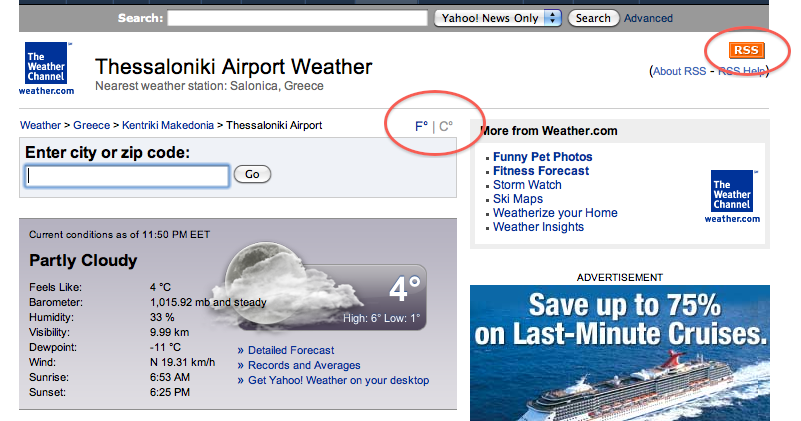
On the RSS page, copy the red part marked below:
http://weather.yahooapis.com/forecastrss?p=GRXX0019&u=c
Back in GeekTool, select Temperature_Display and look at Command. Paste over the code, so the result should be:
curl –silent “http://xml.weather.yahoo.com/forecastrss?p=GRXX0019&u=c” | grep -E ‘(Current Conditions:|C<BR)’ | sed -e ’s/Current Conditions://’ -e ’s/<br \/>//’ -e ’s///’ -e ’s/<\/b>//’ -e ’s/<BR \/>//’ -e ’s///’ -e ’s/<\/description>//’
You should now see conditions and Celsius degrees for your area.
I tried to give you the image file too, but for some reason it would not open automatically. So you have to make it yourself. It is very simple.
Opening GeekTool you see 3 options: File, Image, Shell. Choose Image and drag and drop onto the desktop.
In its options put this path in URL: file:///tmp/weather.png

*Due to my own mistake, ignore the above.
Finally to show the weather image, enable weather. If you already had it, it is already OK. That completes the “Weather” pack.
A little before the end, attention: in the guide image above I also marked Refresh rate and Style. From Style we change font, color, etc. as we like. I think I need say nothing more. Feel free to play.
Refresh rate is how often our code updates. I have them set (except the one you made yourself, of course).
Do not leave Refresh rate at 0, the default, because the geeklets will not work.
If for example on the clock geeklet you put a Refresh rate of 1,000,000 sec, that will not be a clock. There we put 60 sec. So estimate how often you want or need what you see on screen to change.
If you search the internet you will find many things (Facebook announcements, latest tweets, etc.), but here I gathered some basics. Even if the post is a bit long, I hope I did not tire you. For questions, feel free to comment (here or on the original post), or use hellasproject.com contact – macedonas.com contact.