 lefteros
LEFTEROS / PERSONAL NOTES
9 things you can do with VLC (and maybe did not know)
15 June 2010 / Lefteris Iliadis / SomniusX
Historical text from HellasProject (2009–2014). It is not current advice or a present-day service.

Besides being a very good video player for the popular operating systems (Windows, Mac OS X, Linux), VLC has many other features that new users may not know.
Convert video files
One of the most useful features, in my opinion, is converting files from one format to another. I use it often, especially when I need a format compatible with my phone or another portable gadget.
On newer versions the process is extremely simple: go to Media → Advanced Open File and you get this dialog:
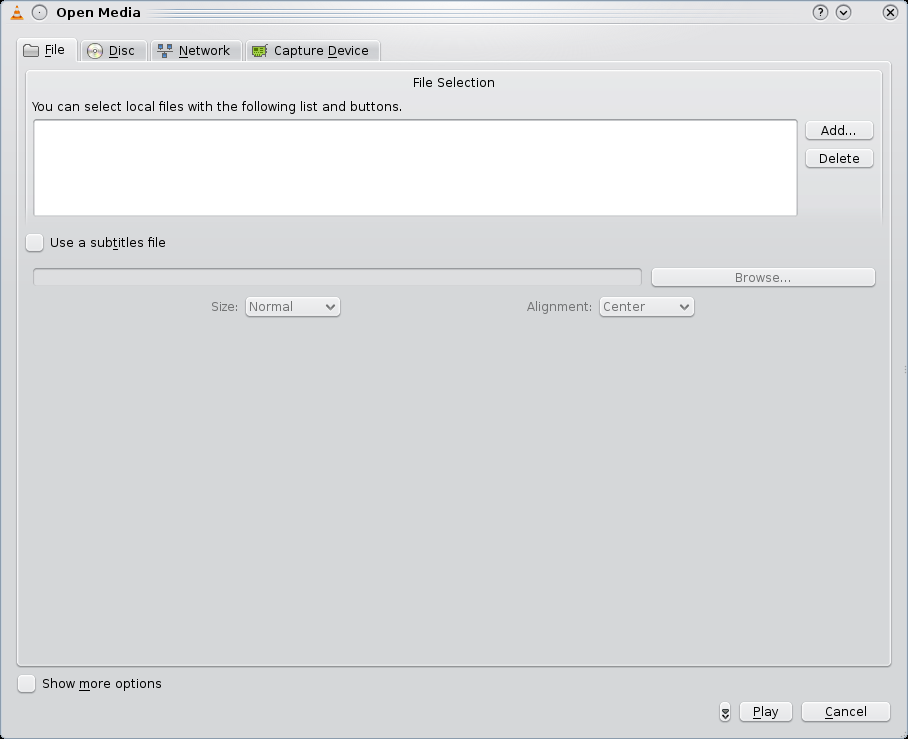
You can add the videos you want to convert and attach subtitle files. Instead of Play, click the arrow next to Play for Enqueue, Play, Stream, Convert, and choose Convert. In the next dialog pick the new file format and name; you can also export only audio, for example as MP3.
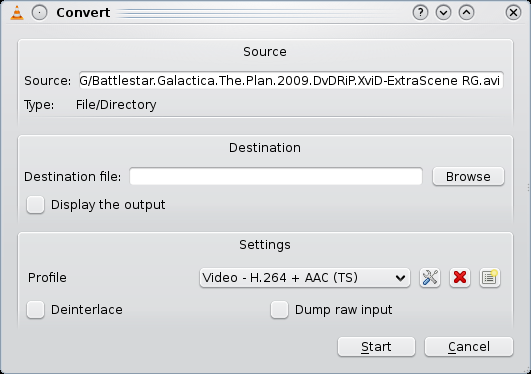
That is it. Now you can play Julia’s DVD… I mean the British election debate on your phone, whatever format it supports.
Create DVD, Audio CD, and VCD
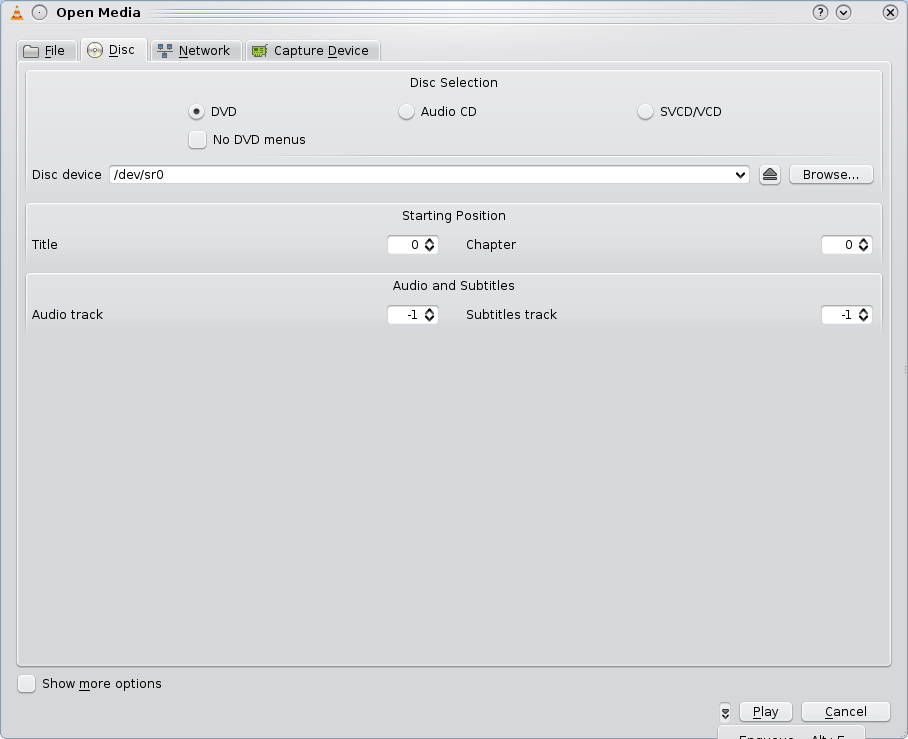
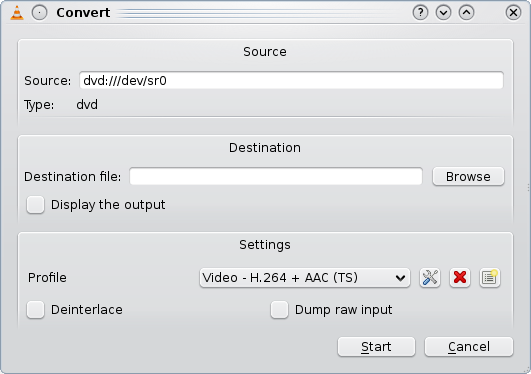
Playing DVDs in VLC is common, but VLC can also create them. There are many DVD apps (such as Bonbono DVD); on Linux VLC is a practical option. Go to Media → Open Disc. On that tab you will find options to create DVD (with or without menus), Audio CD, and SVCD/VCD. As above, choose Convert instead of Play:
Again, pick the format and the output filename.
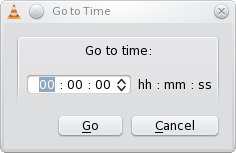
Start playback from a specific time
A practical feature is Jump to specific time. Open a file in VLC and the following dialog appears.
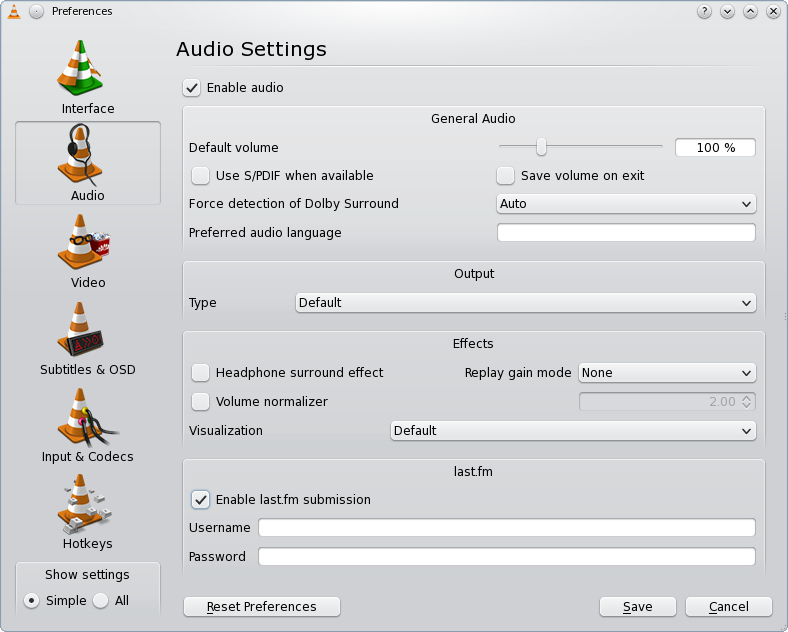
Connect to Last.fm
If you have a Last.fm account you can use VLC to submit your listening habits. Go to Tools → Preferences → Audio, enable Last.fm submission, and enter your login.
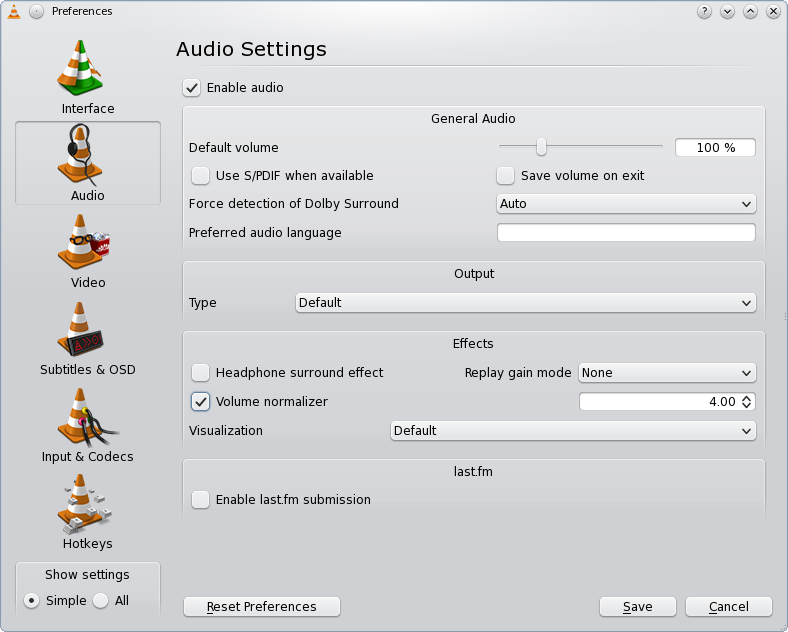
Automatic audio normalization
Videos downloaded from the internet often have uneven audio, so you keep riding the volume instead of watching. VLC has a Volume Normalizer: Tools → Preferences → Audio, tick Volume Normalizer. A value from 0.5 to 9 is reasonable; I prefer 3 or 4 (especially if the film has a lot of gunfire).
Listen to online radio
VLC has hundreds of Shoutcast stations. Go to Media → Services Discovery and tick Shoutcast radio listings. Open the Playlist and you will see dozens of stations.
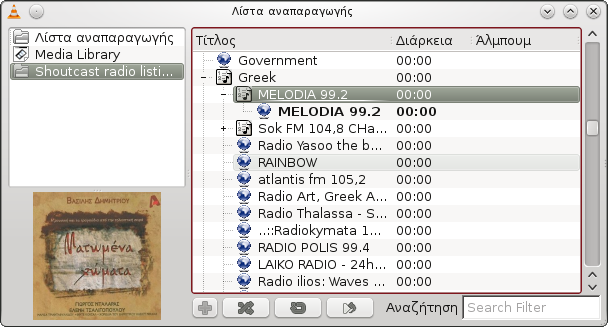
In the photo I am listening to Melodia’s stream. You may not find every favorite station, but it is worth looking; you might find something interesting.
Record video
Besides playback, VLC can record while playing. Go to View → Advanced Controls and you will see extra icons, including record.
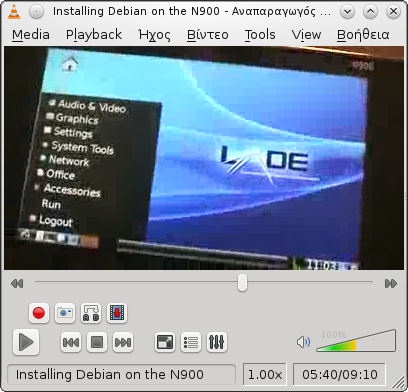
Press it again to stop recording.
Play from RAR files
If you download video from torrents, some files come as one or more RARs. Open the first file (for example part001.rar) and VLC will find the rest so you can watch comfortably.
Download video from YouTube and similar sites
Copy the YouTube page link, go to Media → Open Network Stream, paste the URL, start playback, then Tools → Codec Information. The Location field is the URL of the actual video file.
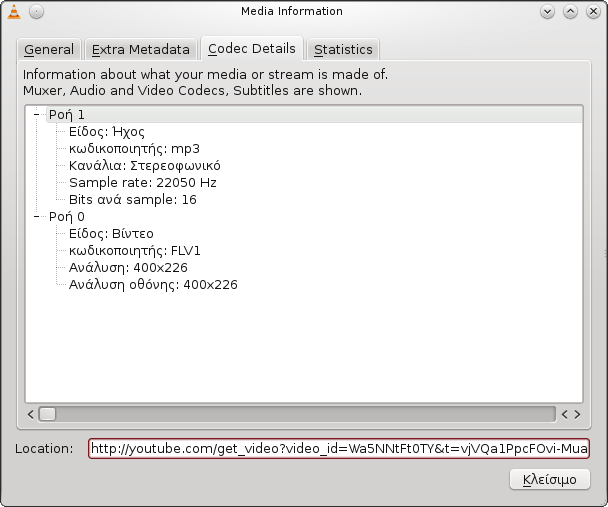
Copy that URL into your browser and you can download it as Flash Video, which plays in VLC and can be converted to whatever format you want.
If you have a VLC tip of your own, feel free to share it.
Source: ElKosmas.gr, written by Eleftherios Kosmas